City of Brampton Logo

Creating a Builder Account on the Brampton Building Portal – FAQs

​​​​​​

​Each production home builder must create at least two user accounts – a Home Builde​​r Account and a Builder Member Account - to use the City of Brampton’s building permit portal. Each account must use a different email address.

​A Home Builder Account allows you to add Builder Members, pay fees, and schedule inspections.  The Home Builder Account can see ALL applications applied for on the portal by all their Builder Members. 

Note: This account cannot submit new permit applications. New submissions can only be made by the Builder Member account. ​

​A Builder Member Account allows you to submit new permit applications, pay fees, and schedule inspections. 

Important: The user of this account can only view the applications that they have personally sub​mitted. If the user needs to view previously submitted permit applications, send an email to building.inquiries@brampton.ca ​to be requested to be added to those applications. 

​For the Home Builder Account, you should never use personal email accounts such as Gmail or Hotmail. You must create accounts using your company’s domain email address. 

I​​​f the account holder uses a personal Gmail or Hotmail account for the Home Builder Account and they leave the company, it will be much easier for you to view the main Home Builder account and all permit applications if it is not a personal email address that needs to be retired from our system. 

​For assistance, contact: building.inquiries@brampton.ca.

​Go to the Brampton Building & Business Portal to create your account. When creating your account select the “Production Home Builder Only" radio button.  FAQ-Homebuilder-Account-img1.png

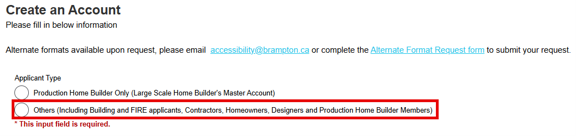
​Go to the Brampton Building & Business Portal to create your account. When creating your account select the “Others" radio button.  

FAQ-Homebuilder-Account-img2.png

  1. To revoke a member account, you will first need to login into the portal by going to the login page: https://bramptonbbp.brampton.ca/citizenportal/app/login
  2. Once you're logged in, click on the “Members tab" at the top of the page.
  3. Your list of members will then appear.
  4. Find the member you would like to remove.
  5. Then click on the revoke button beside their name.
  6. Once the member has been revoked they will no longer be able to login to the portal, see your information, payments, inspections or permits.
  7. The revoked member is now disabled from the portal.
  8. To reactivate their member status and to make their account active please contact the building division at building.inquiries@brampton.ca.

Note: You can only add a contractor to applied or issued permits.

You have two options:

Option 1: The contractor can schedule inspections as a Guest. When your permit is issued you will receive an email with an Authorization Key. Email the Authorization Key and full Permit Number (e.g. 2025 123456 000 00 RS) to the contractor you want to book inspections.

The contractor can visit www.brampton.ca/bbportal  and click on Non- Registered Services to log in and book inspections for that permit. The Authorization Key can be reset as needed if there is a change in contractors.

Option 2: You can add a contractor to your issued permits on your own.

  1. Log into the portal, scroll down to My Issued Permits. Click the permit you want to add a contractor to.
  2. Click the People Details tab and then click the Add Contractor button.

    The contractor you add must have a registered portal account. Enter their email and then click Submit.
  3. You will now see the contractor listed in the People Details.

Note: You are also able to remove contractors as required. 

First, they must be a registered user of the portal.

You can have them create a Builder Member user account that will be the Site Supervisor account type. 
FAQ-Homebuilder-Account-img3.png

Once they have created their account, you can add them as a Builder Member.

If they need access to all permits associated to the main builder account, email building.inquiries@brampton.ca for assistance to ensure the Site Supervisor will be able to book inspections on your existing permits. ​

Be sure to include the email address of the Site Supervisor in your email to us, as well as the permit numbers and addresses of the permits they are required to book inspections for.